I recently had a chat with a colleague of mine regarding the challenges regarding iOS testing now that apps are starting to require a minimum version of iOS 17+; from memory the latest phone that can be jailbroken using paler1an is the iPhone X - although I’ve only personally had experience jailbreaking the iPhone 8 running 16.7.16 - more information about jailbreaking can be found here as that’s not what this post is about.
Getting started
First off, to do this you’re going to need a apple silicon Mac/Mac Mini/Macbook with at least 16 GB of RAM and 128GB of free disk space… my set up uses an M4 Mac Mini with 24GB of RAM and 256GB of storage (I have a NAS so lots of storage on device isn’t necessary), so from here on that’s what I’ll be writing about so your mileage may vary. Once you’ve got the prerequisite device you’ll want to clone the vphone-cli from Lakr233’s repo. Following the guide in their readme (credit where credit is due of course!) - I had the most success with “option 1”, Follow the guide until you get to the quick start section, here where the guide says to run make setup_machine I added the optional parameter JB=1 to add all the jailbreak wizardry to the build process, again I can’t thank them enough for building this repo it’s really handy.
First boot, but a second time
Once the make setup_machine has finished (it took roughly 25 minutes with a 900Mb/s internet connection - make sure you have enough free space) and you’ve booted up the device:

It will ask you to set the device up, now obviously a virtual device won’t all the features of a real device and as such, we need to avoid picking certain countries that make use of device features that aren’t available on a virtual device which will prevent us from going through the entire set up process - to make things easier I’ll just pick United States once you’re done with the standard phone setup instructions you’ll see something like this:
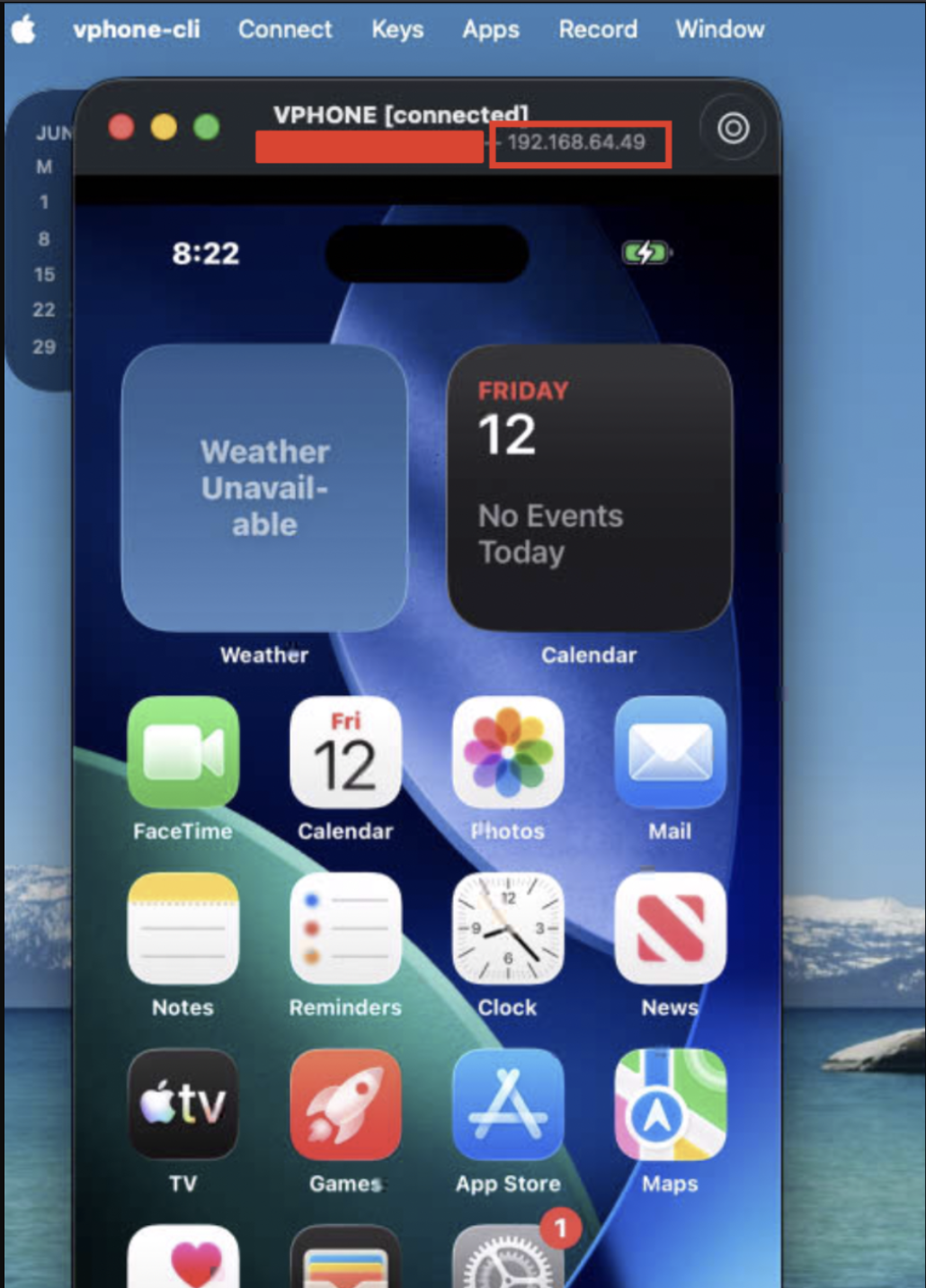
Now we’re all booted we can ssh into the device - the IP address is at the top of the vphone window, the default credentials for the ssh are root:alpine (eagle eyed readers would have spotted the default password in the output of the build process).
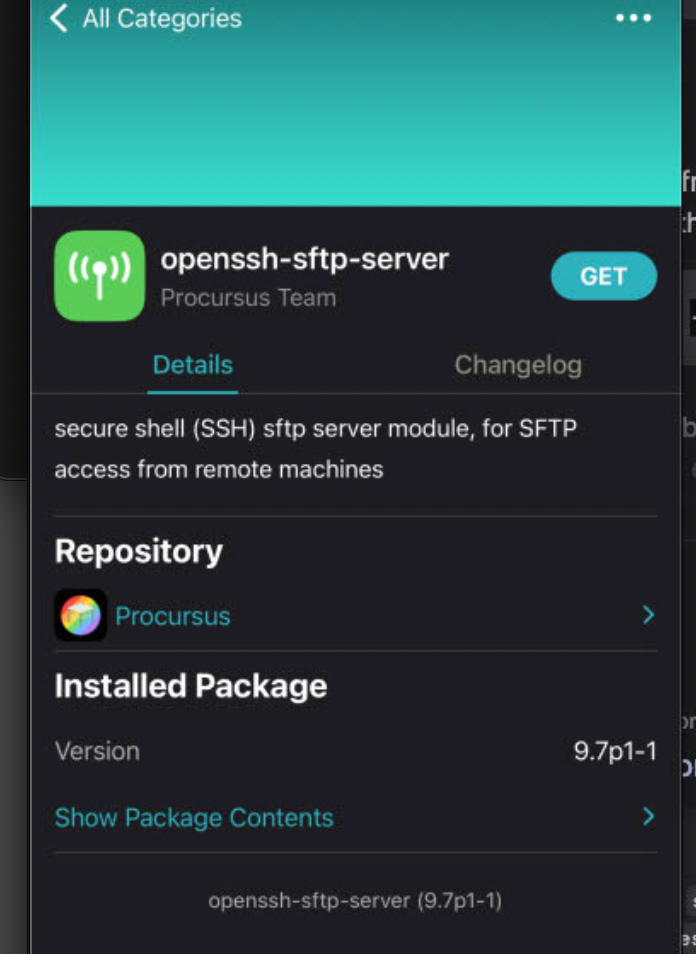
Once you’ve booted the device go ahead and install the sftp-server in the sileo app:
Why, though?
A few reasons, as mentioned previously, it’s getting harder to run newer apps on old devices requirements for newer versions of iOS rule out older, jailbroken devices - in the past I have used corellium; but recently I’ve not been getting along with it, it’s pretty expensive if you’re just doing stuff yourself; there is also the not on my own hardware aspect of it; which, depending on your risk appetite (or other factors) might rule it out for you too.
Installing an app
Installing an app using the vphone is really easy - all you need to do is drag the IPA from finder and drop it over the vphone window it will then install
What next?
Now we’ve got a running jailbroken iOS device, we can borrow the script I wrote in a previous post and add some tweaks to get it to work for our purposes here:
#!/bin/bash

export IPHONE_IP="192.168.0.101"
## create mobile testing Venv
python3 -m venv ~/.mobile_testing_venv
source ~/.mobile_testing_venv/bin/activate
pip3 install frida-tools==13.7.1 frida==16.7.19
wget https://github.com/frida/frida/releases/download/16.5.2/frida_16.5.2_iphoneos-arm64.deb # grab 64-bit frida-server for iPhone

wget https://github.com/frida/frida/releases/download/16.5.2/frida_16.5.2_iphoneos-arm.deb   # 32-bit frida-server for iPhone

# push the frida_servers to the home directory of the "mobile" user which is the default for jailbroken iphones

scp frida_16.5.2_iphoneos-arm64.deb "mobile"@$IPHONE_IP:~/frida_server64.deb
scp frida_16.5.2_iphoneos-arm.deb "mobile"@$IPHONE_IP:~/frida_server.deb

echo "connecting to iPhone at ${IPHONE_IP}"
ssh mobile@$IPHONE_IP -L 27042:localhost:27042 ## ssh into the phone forwarding frida port

## issue these commands in the ssh session
# sudo su
# dpkg -i frida_server64.deb ## frida_server.deb for 32bit
Once you’ve ran the script you should find a virtual environment with certain specific versions of frida, frida-tools, and objection. Go ahead and source that environment source .~/.mobile_testing_venv.
From here we can check that we’re connected - as the frida server should be running on the device now we can run frida-ps -Uai to get all running processes on the device (note: -U because; as far as the device is concerned, the device is connected via USB):
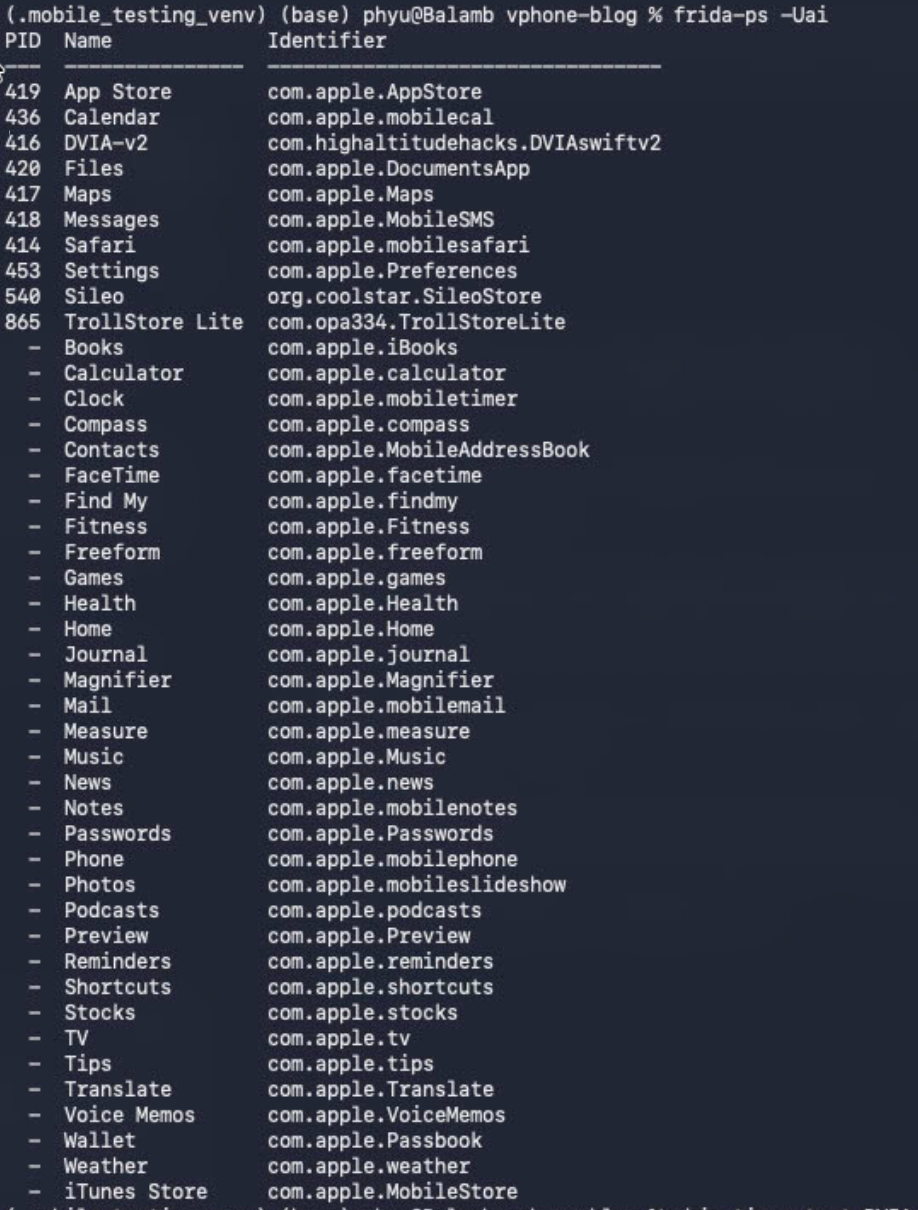
From here we can use the names in frida-ps to connect to a process in objection from by issuing the following command
objection -n DVIA-v2 start
Once you’re connected to the process you can start to explore the application - for example using env to find where the app stores data:

We’re going to leave it here for this post as we’ve now got an idea of how to set up a testing environment using Lakr233’s vphone repo
Troubleshooting
If, for some reason you can’t scp the files up you can ssh into the device, install wget using apt install wget for the frida server above and then install using dpkg -i frida_server64.deb